Warning
This is a simple port from the original documentation. It will be improved in the future.
UI Customization
Group panels
Collect Popup Dialogs or existing Blender panels in an editor’s sidebar. See Side Panel Editor for creating, placing, and nesting panels.
Hide unused panels
Hide existing panels in groups. See Hiding Unused Panels for adding targets and restoring their original display.
PME Toolbar
Note
It stopped working after 4.3. I am in the process of fixing this.
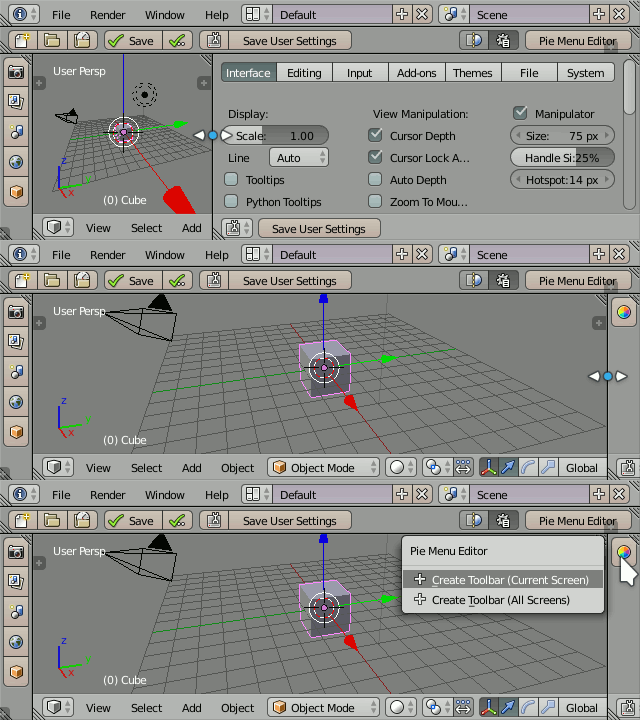
PME allows you to use the User Preferences area as a toolbar when its width or height is minimal:
Older-version reference videos — original author roaoao’s channel
Toolbars in Blender 2.79
Naming
Toolbars display popup dialog’s layout depending on its name:
Toolbar <Screen Name> <Position>
Where Screen Name and Position are optional and Position takes one of these values: Left, Right, Top, Bottom.
Examples
Example |
Description |
|---|---|
|
Top toolbar, all screens |
|
Right toolbar, UV Editing screen |
|
Any toolbar, 3D View Full screen |
Saving
Toolbar widgets are stored in User Preferences. The position and size of the toolbars are stored in .blend files. So in order to save your toolbars, you need to use both and commands.
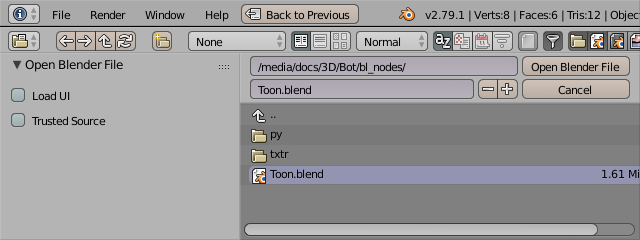
By default Blender loads UI stored in .blend files. To keep the current UI (including toolbars) you need to uncheck Load UI option: