Writing and Running Code
This reference covers the format and execution rules for Python code entered in PME 2.1.
Important
Choose the code field’s editing mode
On Blender 5.2+, enable Multi-line Command Editor to edit Command / Custom code and Context Router targets on multiple lines. Use Shift+Enter for a new line and Enter to finish editing the field, then save the slot. The PME popup editor keeps its single-line field; use Preferences for multi-line editing.
With the option off or on older Blender versions, these fields use the existing single-line control. Menu Poll, Property, and description expressions keep their existing controls.
External Python files remain useful for longer or reusable logic. Call them with
execute_script("scripts/my_action.py").
Command / Custom storage and native Blender execution no longer have a PME-imposed text length limit. This also applies to Context Router targets. The editing option changes the field layout, not the stored source or execution route.
For Command slots and Context Router Command targets drawn in GPU menus (Floating Panel / Vector Menu), the shared operator-property transport still accepts at most 4,096 characters per string. A command body or string argument that exceeds this transport limit is not executed and produces the operator_property_string_too_long diagnostic. A normal Command that can be converted directly to a Blender operator transports its arguments separately, so its total source length can exceed 4,096 characters when every string argument fits. Use a native Blender menu or a short call to an external script for that route.
For functions, variables, and arguments, see the API Reference. For menu availability, see Poll Method.
Prepare one line for the code field
When using a single-line Command / Custom field or a menu Poll field, prepare short operations as one line. For multiline Command / Custom code, enable the editing option described above.
Operation |
Single-line form |
Notes |
|---|---|---|
Run simple statements in order |
|
|
Choose a value by a condition |
|
Replace these names with your actual expressions |
Run only when a condition is true |
|
Evaluates the right side only when the left side is true |
Return a Poll result |
|
For menu Poll, not Command |
You cannot convert if / for / def blocks simply by replacing line breaks with ;. Use the multi-line editor for Command / Custom blocks, or move reusable logic into an external file.
Importing a multiline operation history
Some capture paths extract operator calls and assignments from an operation history and combine them into one line. This is not a way to store an arbitrary Python script unchanged. Check the captured result.
Where code goes and when it runs
Field |
When evaluated |
What to write |
|---|---|---|
Command |
When the item is executed |
Operator calls and value changes |
Custom |
While drawing the UI, repeatedly on redraw |
UI layout using |
Menu Poll |
When checking whether the menu is available |
Read conditions and |
Property Getter / Setter / Update |
When reading, writing, or updating a value |
Code for each callback’s role; see callback specifications |
A file called with |
When its caller is evaluated |
Code appropriate to the caller; a call from Custom runs during drawing |
For example, putting bpy.ops.mesh.primitive_cube_add() in Custom adds data while the UI draws. To place a button, use L.operator("mesh.primitive_cube_add").
Names provided by PME and names you define
PME supplies convenient names in its code fields, but the available values are not identical in every field. This table introduces Command / Custom and files called from them with execute_script().
Name |
Purpose |
Requirements and notes |
|---|---|---|
|
Read the context supplied by PME for this execution or drawing operation |
Not necessarily the same object as |
|
Use Blender’s API |
PME may adjust how |
|
Access Blender data |
Shortcut for |
|
Call Blender operators |
Shortcut for |
|
Access Blender types |
Shortcut for |
|
Draw UI elements in the current layout |
Available during drawing that receives a layout, such as Custom; not an operation target for Command |
|
Inspect the input event passed to this operation |
The name itself may be unavailable when evaluation has no event |
|
Share temporary values within a PME session |
Not persistent storage; do not use it for values that must survive PME re-registration or a Blender restart |
Check the field-specific meaning of names such as pm, pmi, and menu. For example, menu in a Property callback is the Property ID. Consult Property callbacks before reusing code from another type of slot.
Define or import your own functions, mathutils.Vector, and other modules in the external file that uses them. Do not confuse names PME supplies now with variables previously entered in the Python Console.
Run an external file
Write longer logic in a regular Python file and call it from PME with execute_script().
Select a file in the browser
Open the slot with Edit Slot, then choose Call External Script from the menu at the right end of the tabs.
A registered name in Quick Locations opens that resource folder’s scripts/ directory.
Select a .py file, choose its purpose under Use Script As, and click Open Script.
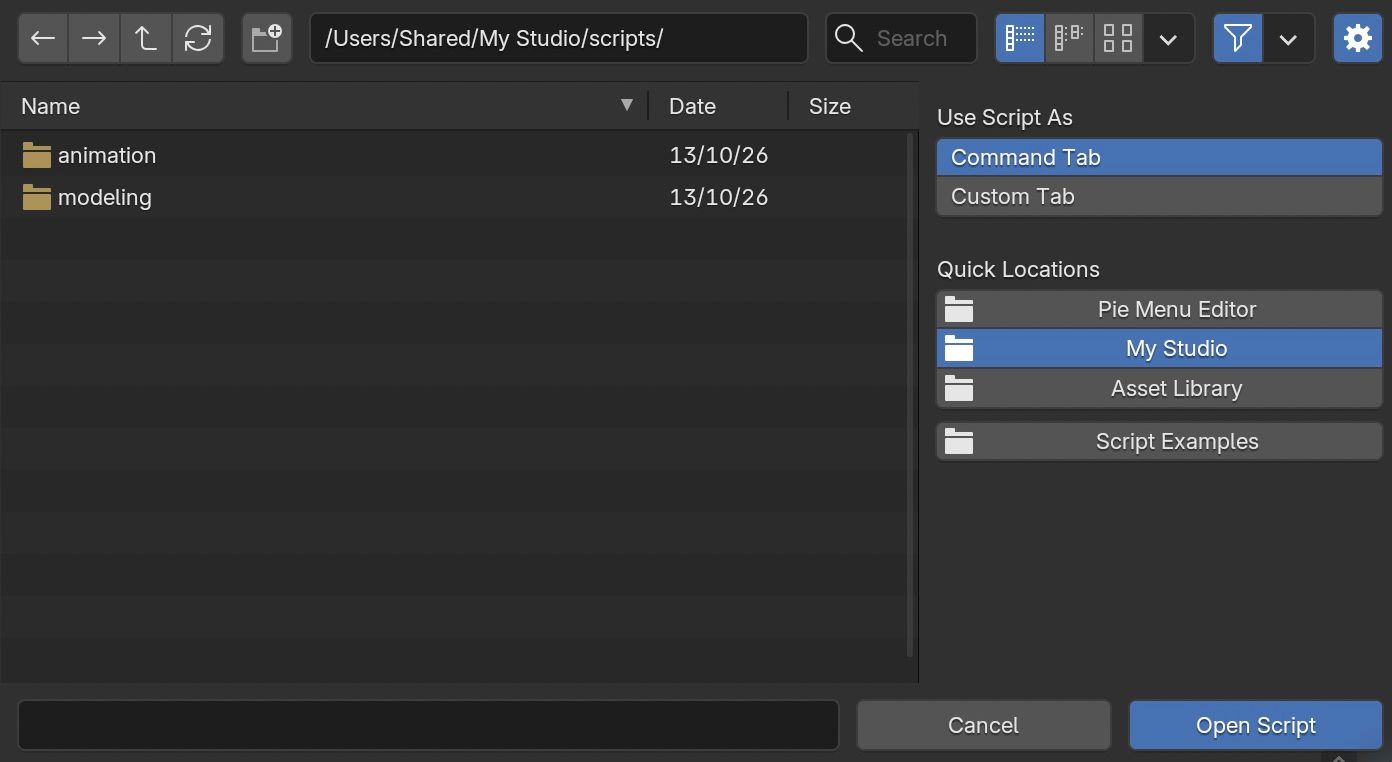
My Studio’s scripts/ directory. Script Examples opens the scripts bundled with PME.
Command Tab — Run the script when the menu item is executed.
Custom Tab — Run the script while drawing the menu. Use this for scripts that place UI elements with
L.
PME fills the slot with a call to the selected file. Confirm the slot with OK.
Files inside a registered folder are saved as references relative to that folder, such as scripts/modeling/bevel_selected.py or tools/bevel_selected.py.
Files outside the registered folders retain absolute paths. See File Locations for registering folders and handling conflicting names.
Changed in version 2.2.0: Quick Locations opens scripts/ in each registered folder. Files selected there are saved using paths relative to their resource folder.
Pass arguments to a script
This example displays the number of selected objects. You can also enter the file’s call directly in the code field.
1. Save the file — Save selection_report.py in the user scripts folder described in File Locations.
File contents (multiline):
return_value = False

def build_report(context, prefix):
    objects = getattr(context, "selected_objects", ()) or ()
    return f"{prefix}: {len(objects)}"

report = build_report(C, str(kwargs.get("prefix", "Selection")))
message_box(report)
return_value = report
2. Set up the call — Paste this line into a pie menu slot’s Command field.
execute_script("scripts/selection_report.py", prefix="Selected objects")
3. Check the result — Select objects in the 3D Viewport’s Object Mode and run the item. A message shows the selection count. Deselect everything and run it again to see 0.
File paths and arguments
Item |
Meaning |
|---|---|
|
Relative to the registered resource folders. PME searches every registered folder and runs a unique match; conflicting matches do not run. Falls back to the add-on package when no user file matches |
|
Any relative path follows the same rule; |
Absolute paths |
Run that file directly |
|
Dictionary of arguments passed by the call; a variable named |
|
Path of the file actually loaded |
|
The return value of |
Assign the call to a variable if you need its result. A return value is not displayed automatically, which is why this example calls message_box(). In PME 2.1, functions defined in the same execution can also access imports and definitions at the beginning of the file.
Moving code into a file does not change the caller’s context or evaluation timing. Include the file when sharing the setup with another environment.
Using the return value to check success
The default return_value is True. Some paths that catch an exception can still return this value, so it is not a general success indicator. This example starts with False and assigns the result at the end. Check error output and the actual result as well. This assignment does not roll back data changes made before a failure.
Operator context and timing
A bpy.ops call depends on where it runs as well as its arguments. The same code can behave differently when called from the 3D Viewport or a button in Preferences.
Are you in the required editor and region?
Is the mode correct, with the required active and selected targets?
Do the argument names and values exist in your Blender version?
Should the operation execute immediately, or start an interaction the user adjusts with the mouse?
EXEC_DEFAULT executes with the supplied values. INVOKE_DEFAULT calls the operator’s initialization path, which may open a dialog or begin mouse interaction. Not every operator supports both forms. See Blender’s Operator API.
When an operator returns RUNNING_MODAL, user interaction is still in progress. Python written after its call with ; does not wait for confirmation. Consider a Macro Operator for sequences that include user adjustments.
Adding code that switches to the first area it finds whenever a context error occurs can make an operation run in an unintended view. Start by calling it from the intended editor and checking the hotkey’s scope. If it must target another area, define how to choose that area and what to do when none exists.
Target another area
Suppose you want a button in the UV Editor to toggle the 3D Viewport overlays. C.space_data belongs to the area that holds the button, so it refers to the UV Editor’s settings. Written as is, the code toggles the UV Editor instead.
Call override_context() with the target area, write the code, then call exit() at the end.
oc = override_context('VIEW_3D'); C.space_data.overlay.show_overlays ^= True; oc.exit()
Between
override_context()andoc.exit(),Cpoints at the specified area.bpy.opscalls also run in that area.This single-line example joins the statements with
;. For a nativebpy.context.temp_override(...)block, use the multi-line Command editor or an external script.Always call
exit(). An override that is never exited is not restored.The first argument is a Space Type Items string (for example
'VIEW_3D') or abpy.types.Area. With a string, when several areas of that type exist, the first one found is used. To target a specific area, pass abpy.types.Areadirectly.If no matching area is found, the current area is kept.
See override_context() in the API reference for the full argument list. To do the same thing in the Python Console, the Context Browser Area Picker wraps the input in a with C.temp_override(...): statement. In PME code fields, use override_context() as shown here.
Diagnose errors
Results displayed in Blender’s Python Console and the destination of PME’s print() output are not necessarily the same. Check Blender’s standard output and error output for print() and Python exceptions. On macOS, this may be the terminal used to launch Blender.
Symptom |
Check first |
|---|---|
|
Is the required name imported or defined in this file? Does this field provide |
|
Is the dependency installed in Blender’s Python, rather than only the system Python? |
|
Missing targets, object type, property names, and Blender version |
|
The editor, region, mode, and selection required by the Blender operator |
Syntax error at the end of the code |
Does the pasted code match the original? |
Works in the Text Editor but not PME |
Missing imports, variables left from a previous execution, or a different execution context |
Runs but gives an unexpected result |
Operator results such as |
Run a short diagnostic Command from the intended editor to identify the state in which an error occurs.
print("PME context:", getattr(C.area, "type", None), C.mode, C.active_object)
Confirm one operation before adding branches or sequences. For data changes, test both with and without a target, and check Undo / Redo. Joining statements with ; or using EXEC_DEFAULT does not guarantee a single Undo step. Do not add bpy.ops.ed.undo_push() mechanically without checking the history.