Context Browser
The property you want to use, or the current state you need for a condition, may be hard to find in Blender’s interface. Context Browser (CB) lets you explore context and data to inspect property values, Python paths, and methods.
You can edit properties as you find them and copy their paths or values. With PME, you can send a property to the Capture Menu and add it to your own menu. CB can also be used on its own.
If you have purchased PME-F, set up the PME Repository, then search for Context Browser in Blender’s Preferences → Get Extensions and install and enable it.
Interface Overview
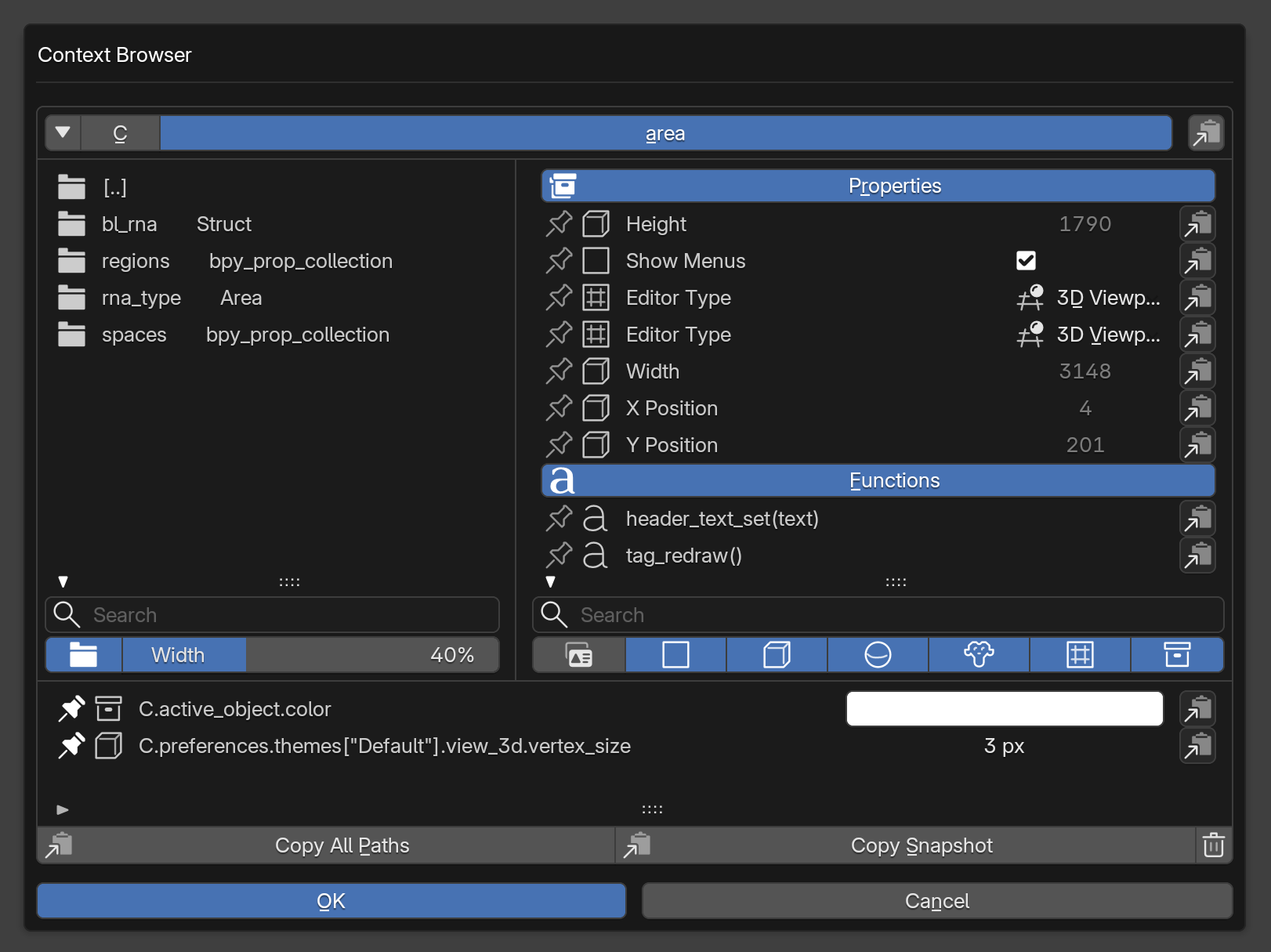 1Paths and BookmarksCheck the current path and navigate its hierarchy.
2Objects and CollectionsExplore members and open the next level.
3Properties and MethodsInspect or edit values and choose actions for a target.
4Search and Display FiltersFilter the lists by name or type.
5PinsInspect, edit, or copy pinned targets.
1Paths and BookmarksCheck the current path and navigate its hierarchy.
2Objects and CollectionsExplore members and open the next level.
3Properties and MethodsInspect or edit values and choose actions for a target.
4Search and Display FiltersFilter the lists by name or type.
5PinsInspect, edit, or copy pinned targets.
Opening Context Browser
Use the CB button in an area’s header to open that area’s context. From F3 → Context Browser or the Blender menu → Context Browser… in the top-left corner, use the picker to choose the area and region you want to inspect. Check the highlight and click to open CB. Press Esc or right-click to cancel.
For example, choosing a 3D Viewport lets you explore its active object and view settings. Other areas, such as the Outliner, provide different context information.
You can also configure a shortcut in the add-on’s Preferences.
Paths and Bookmarks
The current path appears at the top. C → area in the screenshot represents C.area: the area where CB was opened. Click a path segment to return to that level.
C stands for bpy.context, and D for bpy.data. Use the ▼ menu on the left to switch between Context and Data. The copy button on the right copies the current path.
Add Bookmark saves the current location. Return to it from the same ▼ menu. To keep an individual property at the bottom of the browser, use Pins.
Objects and Collections
Use the list on the left to explore objects and collections belonging to the current target. [..] takes you up one level.
The screenshot shows regions and spaces under C.area. Open regions to inspect the regions that make up that area. Adjust Width below the list to change the proportion of space given to the left and right lists.
Properties and Methods
Properties on the right shows the values. Editable properties have checkboxes, input fields, or other controls. Use Edit… for arrays and similar values. Read-only values, such as Height and Width in the screenshot, can be inspected but not changed.
Functions shows method names and arguments. Methods known to take no arguments appear as tag_redraw(). When argument information is unavailable, CB shows (...). Displaying the list does not call the methods.
Each row has a Pin button on the left, a type icon next to it, and Target Actions on the right.
Target Actions
Use the button on the right of a row to choose what to do with its path or value. Available actions depend on the target and whether a compatible PME is enabled.
- Copy Path
Copy the property’s Python path, such as
C.object.display_type.- Copy Value
Copy the current value as a Python value. For enums, this copies an identifier such as
'WIRE', rather than the label shown in the interface.- Copy Enum Identifiers
Copy the list of identifiers declared for an enum. To copy only the currently selected value, use Copy Value.
- Copy Method Path
Copy the path to a method, such as
C.area.tag_redraw.- Copy Call Template
Copy a call template with arguments, such as
C.area.tag_redraw(). This does not call the method. If the template contains arguments, adjust them before running it.- Open API Reference
Open Blender’s official API documentation. If CB cannot identify a specific documentation entry, it opens a search in the official documentation.
- Capture in PME…
Send the property to PME’s Capture Menu. Choose where to add it to create a menu item. Available when a compatible PME is enabled.
If the target disappears or changes before a copy or capture action, check the error and reopen CB.
Search and Display Filters
Each search field filters its own list. You can search for properties by either their display names or their identifiers.
Show Property Identifiers at the bottom right switches property names between UI labels and Python identifiers. In the screenshot, Height corresponds to height, and Show Menus to show_menus.
The adjacent type filters control the display of booleans, integers, floating-point numbers, strings, enums, and arrays. If you cannot find a member, check the search text and type filters.
Pins
Click the Pin button on the left of a row to add the target to the bottom list. Click it again to unpin. The list is hidden when there are no Pins.
Properties can be inspected and edited just like in the regular list. Methods show their names and arguments. Each row also provides Target Actions.
A Pin keeps a path. For example, C.active_object.color refers to whichever object is active at the time; it does not keep the object that was active when you pinned it. If the path cannot be resolved, such as when there is no active object, the row shows the problem.
Copy All Paths copies all pinned paths together. Copy Snapshot copies the paths and their current values or other details, for use in investigation notes or a question to an AI assistant. The trash button on the right removes all Pins.
The add-on’s Preferences also has a Pinned Paths list, where you can review, copy, or remove saved paths.
Console Area Picker
The Area Picker button with the eyedropper icon in the Python Console header wraps your current input in a statement that runs it in the chosen editor.
Type code into the Console without running it yet.
Click Area Picker, then click the target area.
Review the input with its added
with C.temp_override(...):statement, then run it.
For example, enter the command that frames the selection in a 3D View:
bpy.ops.view3d.view_selected()
Choose a 3D View to produce with C.temp_override(...): bpy.ops.view3d.view_selected(), with the chosen area and its WINDOW region specified. The picker inserts code; it does not run it automatically.
The adjacent copy icon copies the chosen area’s path to the clipboard. Area indices can change when you split or join areas, so pick again after changing the layout.
Choosing an execution area does not change the mode or selection. For example, growing a mesh selection in Edit Mode uses bpy.ops.mesh.select_more(), while extending an object selection through parent/child relationships in Object Mode uses bpy.ops.object.select_more(). An operator still needs the appropriate state, even when its execution area has been specified.
Display Settings
Open Settings… at the bottom of CB’s top-left ▼ menu, or use the add-on’s Preferences.
- Show Header Button
Show a button for opening CB in each area’s header.
- Show Console Area Picker
Show the Area Picker and Copy Path buttons in the Python Console header.
- Width
Set the CB popup width. The change takes effect the next time you open CB.
- Number of Rows
Set the number of rows shown in the object and property lists.